- Home
- Blog
- Salesforce
- Salesforce Integrations

- Apex Class in Salesforce
- Approval Process In Salesforce
- Step By Step Guide to Becoming a Certified Salesforce Developer
- Bulkification in Salesforce
- Code Coverage In Salesforce
- Context Variables In Salesforce
- Controller Extension in Salesforce
- Controlling the program flow in Salesforce
- How To Create Data Modeling In Salesforce?
- Custom Controller in Salesforce
- Custom Reports In Salesforce
- DML Operations In Salesforce
- Top 10 Features of Salesforce Lightning
- Governor Limits in Salesforce
- How Salesforce Certification Can Boost Your Career?
- Salesforce Lookup Relationship
- Master-detail Relationship in Salesforce
- User Management And Object Level Security In Salesforce
- Price Book in Salesforce CPQ
- Product Bundle in Salesforce CPQ
- Quote Line Editor In Salesforce CPQ
- Why Learn Salesforce?
- Record Level Security In Salesforce
- Report Building in Salesforce
- Salesforce Automation Testing With Selenium
- Salesforce Collection of Map
- Salesforce Collection of Set
- Salesforce CPQ Implementation Guide
- Salesforce CPQ Tutorial
- How to create dashboard in Salesforce
- Salesforce Developer Certification, Jobs And Salary Trends
- An Overview of Salesforce Development Environment
- Salesforce Interview Questions
- Salesforce Lightning Interview Questions
- Salesforce Lightning Tutorial
- Salesforce Enhances Its Marketing Cloud With AI And Google Partnership
- Salesforce Job Roles And Certifications
- Salesforce Tutorial
- Salesforce vs ServiceNow
- Salesforce Vs Siebel CRM'S
- Access Specifiers in SalesForce Cloud Computing - Salesforce
- An Introduction to Exception Handling – SalesForce
- An Introduction to Visualforce – SalesForce
- An Overview of Salesforce Security
- Annotation in SalesForce
- Classes, Inheritance and Overriding in SalesForce
- Configuring Salesforce Web-To-Lead Form
- Creating Visualforce Page using AJAX Programming - Salesforce
- How to Create Field Dependence in SalesForce
- How to Create Sample Apex Trigger in SalesForce
- How to Define Validation Rules in SalesForce
- Object Relationships Overview – SalesForce
- SalesForce Integration and Environment in Cloud Computing
- SalesForce Deployment and Assertions
- Shallow copy and Deep Copy in Cloud Computing - Salesforce
- Security and Audit Trail in Salesforce
- Salesforce SOQL
- SOSL Of Salesforce
- Standard Controller In Salesforce
- Test Class in Salesforce With Example
- Testing APEX In Salesforce
- Time Dependent Workflow Rule - Action
- Trigger Scenarios in Salesforce
- What is CRM? - A Complete Beginners Tutorial
- What is Salesforce Administrator?
- What is Salesforce CRM?
- Why You Should Learn Salesforce Skills
- Workflow Rules In Salesforce
- Configuring Tasks in Workflow Rules
- How to call APEX Class
- Context Variables
- Configuring Email alert in Workflow Rules
- Salesforce Web Services
- Salesforce Vlocity Interview Questions
- Salesforce CPQ Interview Questions
- Visualforce Interview Questions
- Salesforce Tools
- Salesforce Integration Interview Questions
- Custom Settings in Salesforce
- What is Salesforce Database?
- Salesforce Data Loader
- Salesforce Platform Events
- What is Salesforce Marketing Cloud - Definitive Guide
- Bucket Field In Salesforce - Bucket Column Salesforce
- What is Junction Object In Salesforce?
- Sharing Rules in Salesforce
- What is Salesforce Architecture?
- Salesforce Projects and Use Cases
- Salesforce Marketing Cloud Integration
- Microsoft Dynamics VS Salesforce
- Salesforce Admin Projects and Use Cases
- Salesforce Apex Tutorial
- Salesforce Apex Development Tutorial
- Apex Testing and Deployment
- Salesforce Data Operations
- Salesforce Security
- Salesforce Data Modeling and Relationships
- Salesforce Reporting and Data Loader
- Salesforce Career Guidance
- Salesforce Comparisons
- Salesforce Administrator Tutorial
- Salesforce Database and Custom Settings
- Salesforce Automation: Workflow Rules, Approval Processes, Governor Limits, and Bulkification
- Salesforce Development
- What is Salesforce Agentforce
- Salesforce Agentforce vs Salesforce Service Cloud
- Salesforce Agentforce Architecture
Salesforce is a premier customer relationship management (CRM) platform that enhances customer engagement. It enables businesses to leverage customer data and AI effectively to achieve customer success.
You can integrate Salesforce with various tools to enhance collaboration and streamline business operations. Salesforce connects seamlessly with MuleSoft, Tableau, Jira, and other platforms to address diverse business requirements.
This tutorial examines Salesforce integrations with Mulesoft and Tableau in depth.
Table of Contents
- Salesforce – An Overview
- Salesforce Tools
- Configuring Salesforce Web-To-Lead Form
- Salesforce Web Services
- Event-driven Salesforce Architecture
- Salesforce Platform Events
- MuleSoft Integration with Salesforce
- Tableau Integration with Salesforce
- Frequently Asked Questions
Salesforce – An Overview
Salesforce is essentially a CRM platform that brings together sales, marketing, service, and IT teams. It allows teams to work together and be more intelligent. Also, teams can communicate with their customers more efficiently and deliver a better customer experience.
Salesforce maintains a unified data platform so that different teams can access data in a single, seamless view. Also, Salesforce helps improve team collaboration, increase sales, and drive better business outcomes.
Salesforce Tools
Here are some of the best Salesforce tools you can use. Let's take a closer look.
- Sales Funnel: Sales Funnel helps managers track sales representatives' progress by visualising the entire sales funnel. This tool also lets you see conversion rates at every stage.
The tool lets you quickly find out when further training is required. The stages can be customized to meet the company's requirements. With this app, you can automatically import data from Salesforce as well. - Adobe Sign: Adobe Sign helps automate complex paperwork processes. With this tool, you can create, sign, send, and file agreements from the Salesforce platform.
The e-signature process is also automated. You can streamline the entire process and shorten the sales cycle. The app has two-way integration with Salesforce, and documents can be populated from Salesforce data. You can automatically file the client's information in Salesforce once the agreement is signed. - ZoomInfo: ZoomInfo comprises an extensive database of verified contact information. It can easily detect discrepancies between the Salesforce and ZoomInfo databases. Not just that, it automatically updates the Salesforce database.
Furthermore, you can set alerts for companies and receive notifications about new projects, funding opportunities, and staffing changes. - SMS-Magic: SMS-Magic helps engage leads across various communication channels, according to customer preferences, including SMS, WhatsApp, Facebook, and more.
With this tool, you can handle all the conversations in a single inbox. You can also set up bots for automated conversations and communication-based marketing campaigns. - Whatfix: This tool guides employees by helping them navigate through every factor of the platform. This way, you will better understand how to use the platform to its full potential.
Whatfix provides various guides on responding to customer questions via social media or email. The tool also provides alerts on new features and upgrades, keeping the team up to date on everything Salesforce offers. - Five9: It acts as an omnichannel contact centre, typically helping customer service teams manage and route calls. Its ability to automatically prioritise and route calls instantly directs your customers to the correct agents.
The tool also includes a chat function that lets agents message customers, thereby reducing call volume. Five9 uses Salesforce data to provide agents with customer context and make suggestions afterwards. - Social25: Social25 assists you with customer engagement on their chosen social channels. With this tool, you can see and respond to your customers without switching windows, as messages are received within the Salesforce platform.
This tool is suitable for employees who wish to connect with customers via Kik, Facebook Messenger, WhatsApp, Twitter DMs, and similar channels. If you want, you can even create chatbots to improve instant customer engagement further. - SurveyMonkey: It is undoubtedly an invaluable tool for improving customer satisfaction. Since it makes it possible to conduct direct surveys, you can easily use this tool to automate the whole survey process and speed it up.
You can seamlessly gather feedback and store it in Salesforce with this tool. SurveyMonkey offers a mobile-friendly approach and a variety of pre-made templates that save you a lot of time. - Ambition: If you use multiple platforms to gather essential business data, Ambition is a great tool. It helps you curate and display performance analytics from Salesforce and third-party systems - all in one place.
Moreover, you can develop and manage your teams with this platform's customizable, consistent, metric-based coaching programs. Ambition's robust coaching suite lets sales and enablement leaders maximise their teams' performance.
| If you want to gain hands-on expertise in Salesforce and master real-time data operations, consider enrolling in a comprehensive Salesforce training program that covers SOQL, SOSL, and DML in depth. |
Configuring Salesforce Web-To-Lead Form
Web-To-Lead – An Overview:
Web-to-Lead generates a contact form that you can integrate into an existing website. Each form submission creates a lead record in Salesforce. Salesforce web-to-lead lets you directly capture leads from your website and load them into Salesforce.
You place a form that collects the required information, which is then stored in the Salesforce Lead object. You can easily set up a page on your website to capture new leads.
- Data Management: Web-to-lead is used to manage data that moves in and out of SFDC. Let’s look at its various components below.
- Reports: A report in Salesforce has rows and columns. It can be filtered, grouped, or shown as a graphical chart. A report can be of the tabular, summary, matrix, or joined format. Reports are always generated in real-time. When a report is saved, its configuration parameters are stored.
- Once data is collected into the data model, it is used for various purposes, such as transactional, informational, and analytical.
- Salesforce provides reports and dashboards for analytic purposes.
- Salesforce provides a wide range of prebuilt reports, and developers can also create custom reports.
- Reports can be scheduled with specific dates and times or on a periodic schedule.
- Tabular Reports: Tabular reports are the simplest and fastest way to view your data, similar to a spreadsheet. They consist of an ordered set of fields in columns, with each matching record listed in a row.
They can’t be used to create data groups or graphs. But you can use it as the source report for a dashboard table or chart component. - Summary Reports: A summary field contains numeric values for which you want to know the sum, the average, the highest or the lowest.
Summary reports are similar to tabular reports and allow users to group rows, view subtotals, and create charts. You can use the reports to generate subtotals based on the value of a particular field. You can also use them to create a hierarchically grouped report. - Matrix Report: Matrix reports allow you to group records both by row and column. You can use matrix reports to view data across two unrelated dimensions, such as date and product.
- Dashboards: The dashboard provides a graphical view of the data in your reports.
A dashboard displays data from source reports as visual components, such as charts, gauges, tables, matrices, or Visualforce pages.
Each dashboard can have up to 20 components. You can view any dashboard available in a public folder in their organization. - Workflow: Workflow allows you to automate standard internal procedures, saving time across your organization. A workflow rule is the main container for a set of workflow instructions. There are two types of workflow: Immediate and time-dependent. You need to consider the following when writing the workflow:
- Objects
- Evaluation criteria
- Rule criteria
Workflow supports 4 types of actions, such as: - Assigning a task
- Sending emails
- Updating fields
- Sending outbound messages
- Creating Workflow Task: Let’s look at how to create workflow tasks.
- Creating Email Alerts: Email Alerts serve as the basis for many automated email notifications in the system. They can be confirmation messages to users when they sign up and notifications to agencies about sign-ups.
Email alerts are actions associated with workflow rules, approval processes, or entitlement processes. An email alert sends an email to one or more recipients you specify. - Defining Field Updates: Field update changes the value of a field. For example, it automatically changes the owner field on a contract three days before it expires.
- Defining Outbound Messages: An outbound message is a workflow, approval, or milestone action that sends the specified information to a designated endpoint, such as an external service.
Outbound messaging allows you to specify that changes to fields trigger messages containing field values to be sent to designated external servers. They send a secure, configurable API message in XML format to a designated listener.
- Creating Email Alerts: Email Alerts serve as the basis for many automated email notifications in the system. They can be confirmation messages to users when they sign up and notifications to agencies about sign-ups.
- Reports: A report in Salesforce has rows and columns. It can be filtered, grouped, or shown as a graphical chart. A report can be of the tabular, summary, matrix, or joined format. Reports are always generated in real-time. When a report is saved, its configuration parameters are stored.

Salesforce Web Services
Salesforce Web Services is a prebuilt set of applications designed for businesses, tailored to specific needs. It helps marketing, sales, commerce, service, and IT teams work together.
- Web Services
A web service is a way to call a method in one application from another. You need to integrate two applications. The integration can be either one-way or two-way. If it is a one-way integration in which the second application calls the first.
If middleware is involved in this communication, the procedure is first applied to the middleware, and then the middleware carries the step forward. The applications can be written in any language.
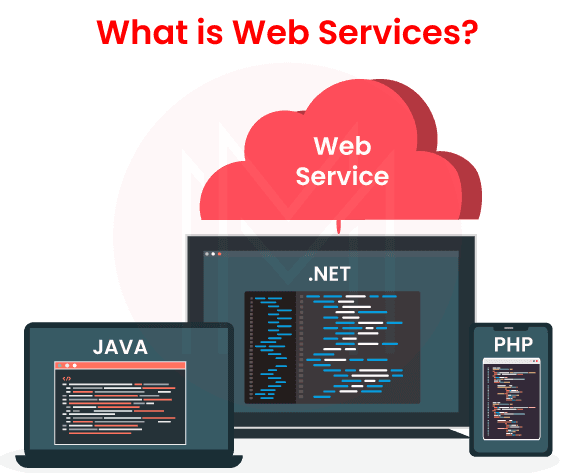
Web services enable two applications to communicate using various methods. The methods could be SOAP, REST, HTTP callout, or Future callout.
- Types of Web Services: The two key types of web services are:
- SOAP web services
- RESTful web services
- REST API - An Introduction
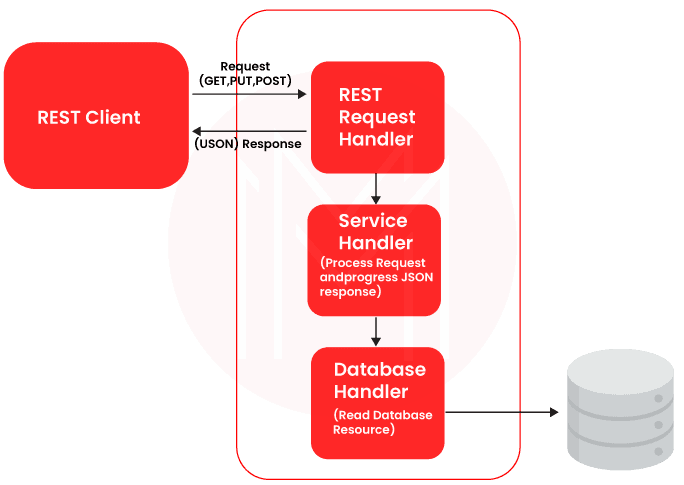
- It is a powerful web service based on RESTful principles, simple and easy to use.
- The REST API provides an interactive framework and lightweight requests.
- Search or query-related data is required to retrieve object metadata and access information.
- The REST API supports both XML and JSON.
- It supports mobile and web apps.
- SOAP API - An Introduction
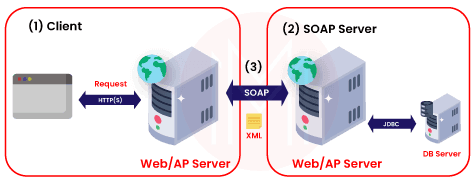
- The Simple Object Access Protocol (SOAP) uses messaging protocol specifications to exchange structured information.
- The Web Services Description Language (WSDL) file defines the parameters for accessing data via the API.
- This service supports only XML.
- It has easy access to business logic and Salesforce data.
- The SOAP API can handle medium-scale data volumes.
- Why Salesforce Web Services?
- It is used to better expose the functionality of the existing code on the network.
- It is well known for its interoperability. It allows various applications to access a database and communicate with one another to share data and services.
- It uses a well-defined standard protocol stack to enable communication between layers.
- The implementation costs of the web services are comparably low.
Event-driven Salesforce Architecture
Event-driven architecture is also known as message-driven architecture. This architecture consists of event producers (aka publishers), event consumers (aka subscribers), and channels.
This architecture works based on the publisher-subscriber model. So there is no request-response mechanism, and no use of servers to manage communication.
It simplifies communication in large distributed systems and decouples publishers and subscribers.
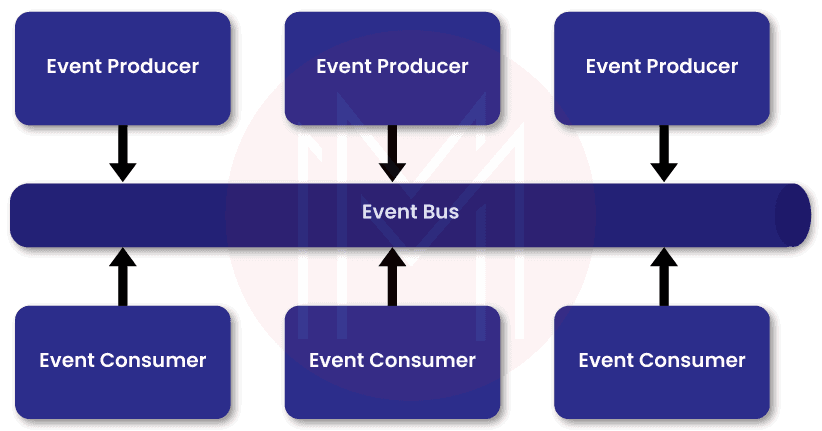
- Components of Event-driven Systems: In event-driven systems, many components play a vital role in exchanging real-time data between publishers and subscribers.
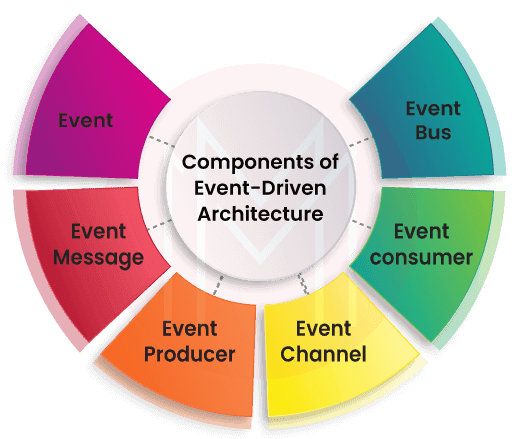
Let’s have a brief look at the components below: - Event: An event is created when there is a meaningful change in the state of a business process.
- Event Message: Generally, an event message consists of information about the event. For example, if raising a purchase order is an event, the event message will include all the details required to process it. Publishers broadcast event messages to their subscribers. Event messages are broadcast to subscribers in the same order they are received from publishers.
- Event Producer aka Publisher: An event producer is the publisher of an event message. In other words, the event producer creates an event and publishes the event. For example, you can consider an order-placing application as an event producer.
- Event Channel: It is a stream of events that flows from publishers to subscribers.
- Event Bus: It is the transportation medium that carries event messages from publishers to subscribers. The event bus usually operates in queue mode, processing events in chronological order. In simple words, it executes events one by one.
- Event Consumer aka Subscriber: It is the destination system or application that receives event messages. Once the events are published on the event bus, subscribers will be notified immediately.
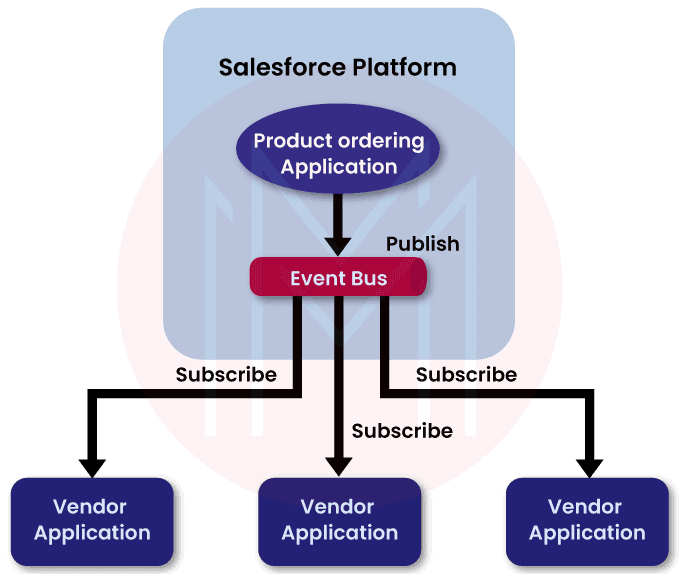
For example, a vendor application can be a subscriber. It can receive event messages from a publisher that may be an order-processing application.
Salesforce Platform Events
Salesforce platform events can broadcast messages to applications. They transport messages within Salesforce applications and between Salesforce and external applications.
Let’s discover more about the platform events.
- Salesforce platform events are created when the state of business processes changes.
- They use an event-driven messaging architecture. This architecture enables real-time communication between applications within the Salesforce platform.
- It also supports communication between Salesforce applications and external applications.
- Salesforce platform events follow a publisher-subscriber model. They connect publishers with subscribers.
- When events are created, they send messages to subscribers.
- Any number of subscribers can receive messages from a single publisher.
- It simplifies inter-application communication without hard logic.
Real-time scenario:
Suppose the ink level in a printer cartridge runs low. It creates an event in the Salesforce platform. It triggers the order-processing application on the Salesforce platform.
After that, the event message, along with the cartridge details, is sent to all its subscribers. The right subscriber who can process this order starts shipping a new cartridge.
Modes of communication by Platform Events
Salesforce platform events enable communication between publishers and subscribers in three modes.
Let’s take a look at them with examples.
- Salesforce Platform to External Application:
Consider you have got a new order from one of your customers. It creates an event in the Salesforce platform. That’s because the arrival of the new order changes the state of the business process, which triggers the event.
Once the event is created, the publisher sends an event message along with the order details to all its subscribers. The subscribers can be vendor applications. The correct vendor application accepts this new order, sends a confirmation, and processes it further.
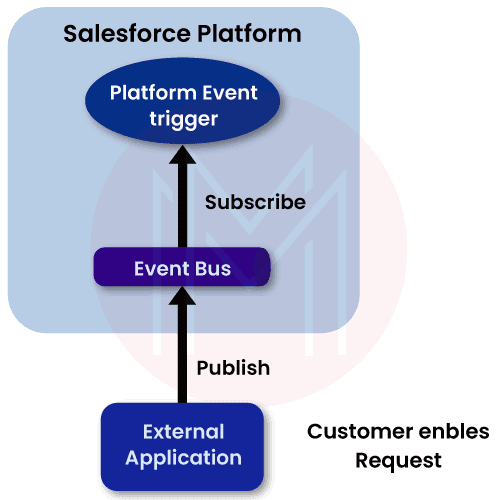
- External Application to the Salesforce Platform:
Consider a customer who wants to return a purchased product. The customer's request to return the product creates an event through an external application. The event listener receives this event in the Salesforce platform. It triggers the following events in the Salesforce platform.
-
- It may alert a sales representative to process the customer’s request.
- It may enable sending a confirmation email to the customer.
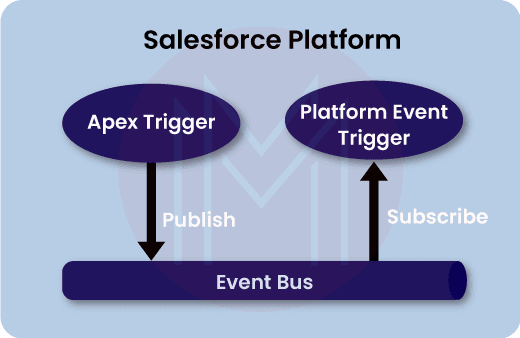
- Salesforce Platform to Salesforce Platform:
Assume there is a new sales lead in Salesforce. A lead trigger in the Salesforce platform creates an event.
Once the event is triggered, Salesforce verifies the opportunities with the lead owner. Based on the verification results, Salesforce may reassign the lead.
- Publishing in Salesforce Platform Events:
Once Salesforce platform events are created, they publish event messages via flows, Apex, processes, and other mechanisms.
Salesforce platform events can be published in two ways: declarative and Programmatic.
Know that process builder and flows are used to publish events declaratively. On the other hand, Apex is used to publish events programmatically.
Let’s have a look ahead.
-
- Flows: You can publish event messages to subscribers through workflows. Here, you need to create record elements to publish event messages.
- Processes: A process builder is used to publish event messages from a Salesforce application. You need to create a record action for processes. Processes built in the Process Builder can receive event messages via APIs, Apex, and other processes. They also support an auto-subscription mechanism.
- Apex: You can also use Apex to publish messages from a Salesforce application. You can use flows in addition to ‘called interviews’ to receive platform event messages. Also, they support an auto-subscription mechanism.
- Salesforce APIs: External applications can publish messages using APIs. To create events, you can use Salesforce APIs such as the SOAP, Bulk, or REST APIs. The APIs return messages to publishers indicating whether the delivery was successful or unsuccessful.
- Pub/Sub API: Pub/Sub API can publish event messages from external applications. You can use the Pub/Sub API to receive event messages in external systems or applications. You can publish, retrieve, subscribe, and use the event schema with a single API.
- Subscribing to Salesforce Platform Events:
Similar to publishing events, you can subscribe to events using Flows, Apex triggers, processes, the Pub/Sub API, etc. It can be done both declaratively and programmatically.
- Apex Triggers:
You can use Apex triggers to subscribe to event messages. By writing an ‘after insert apex’ trigger on an event object, subscriptions to incoming events are achieved. Triggers also support an auto-subscription mechanism.
- CometD
You can use CometD to subscribe to Salesforce platform events in an external client. You can use a CometD client or EMP connector, an open-source tool, to listen to a channel.
- Types of Salesforce Platform Events: Generally, there are three types of Salesforce platform events. Let’s discuss them one by one below.
- Custom Platform Events: Custom platform events are like sObjects. They support publishing and processing custom notifications. You can create a custom platform event by giving it a name and adding custom fields. Not only that, we can add more fields if you want.
You can publish custom events on the Lightning platform using Apex, Flow Builder, Process Builder, or an API in external applications. - Standard Platform Events: They are Salesforce platform events with predefined fields. Event messages are sent to all the systems subscribed to these events.
- High-volume Platform Events: These events can publish and process a massive volume of events. No wonder millions of events can be processed simultaneously. They provide better scalability than other types. High-volume events take time to be published.
- Custom Platform Events: Custom platform events are like sObjects. They support publishing and processing custom notifications. You can create a custom platform event by giving it a name and adding custom fields. Not only that, we can add more fields if you want.
- Advantages of Salesforce Platform Events: Let’s list down the advantages of using Salesforce Platform Events.
- Platform events support point-to-point integrations.
- They simplify communication without writing any hard logic.
- You can make scalable, secure, and reliable notifications or messages.
- You can encrypt event messages to enhance security.
- More than one client can listen to the same event and respond to it.
- You can set permissions for creating Salesforce platform events.
- Limitations in Salesforce Platform Events: Only 2k concurrent clients can subscribe to Salesforce platform events simultaneously. If you want to serve more clients, you can integrate Salesforce with external applications such as Heroku. You need to purchase add-ons to increase the limits.
In a nutshell, Salesforce Platform events are a reliable and robust way to implement B2C communication.
MuleSoft Integration with Salesforce
In this section, you will go through a step-by-step procedure to easily integrate MuleSoft with Salesforce.
Integrating applications and tools streamlines data exchange and optimises communication. It eliminates frequent tool-switching, saving valuable time.
Know that MuleSoft is an integration platform for APIs and SaaS applications. MuleSoft provides streamlined API solutions that reduce hardware and coding demands. Conversely, Salesforce streamlines sales and marketing workflows, uncovers deeper customer insights, and drives business growth.
- MuleSoft - An Overview:
MuleSoft is a popular integration platform that helps businesses collaborate with other platforms. It connects to external applications in a simple, plug-and-play manner. It is an easy-to-use tool that supports quick integrations.
MuleSoft is a Java-based platform with which you can organize data, automate business processes, and improve customer experience. It enables component reuse, improves productivity, and provides enhanced security to data and applications.
Now that you have a basic understanding of MuleSoft, we will proceed to the integration steps.
MuleSoft integration with Salesforce allows Salesforce to gather accurate data from multiple applications.
The following is the step-by-step procedure for integrating MuleSoft with Salesforce. Here we go:
- Creating a MuleSoft account:
- Step 1: First, create a MuleSoft account on your machine.
- Step 2: Install MuleSoft on your machine using the provided link.
- Step 3: Open MuleSoft and create a new project.
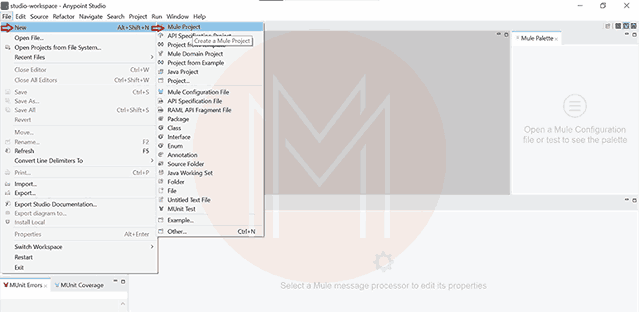
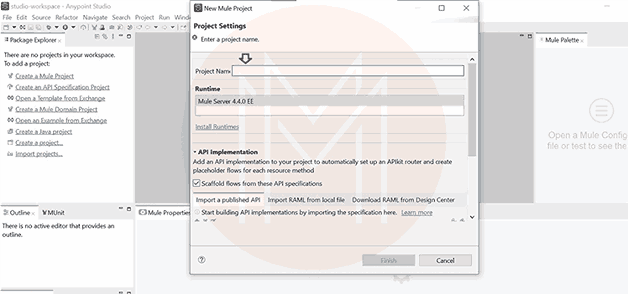
- Enter the project name and click the finish button.
- Creating a Salesforce account:
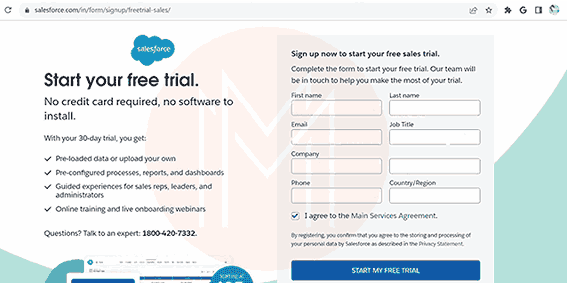
- Step 5: Create a Salesforce account using the provided link. Enter your details to open a trial version. You can create a Salesforce account using the link below. Enter your details to open a trial version of Salesforce.
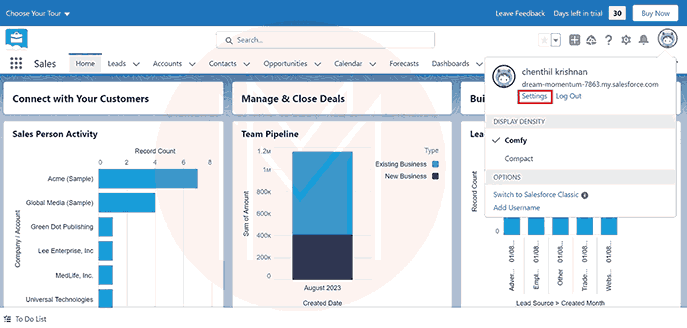
- Step 6: Click your profile in the right corner of the page.
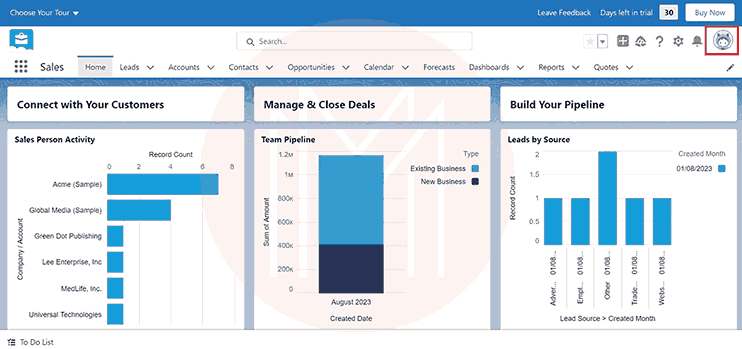
- Step 7: Find ‘settings’ as shown in the image. Click the settings option.
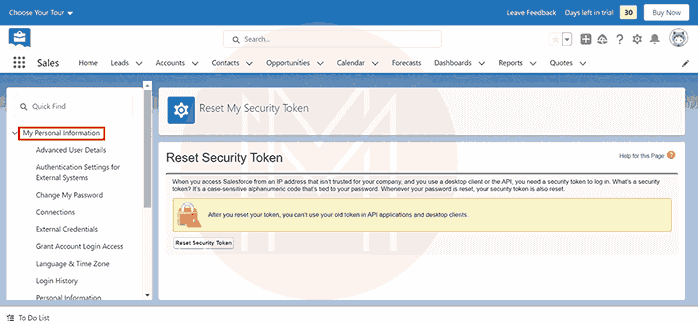
- Step 8: On the ‘My personal information’ page, navigate to ‘Reset My Security Token’.
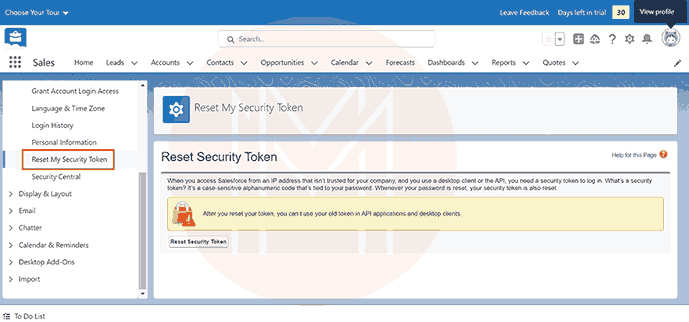
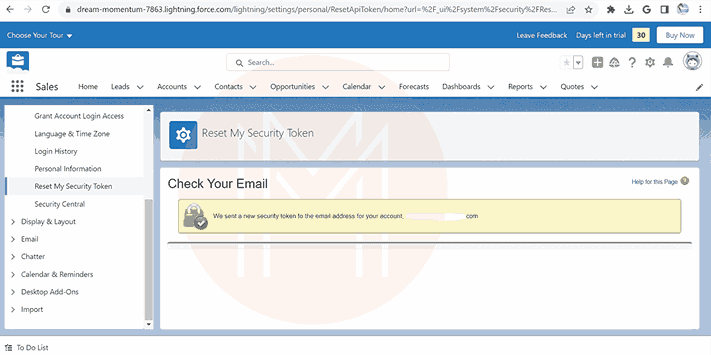
- Step 9: Click the 'reset for security token' button. A new token will be emailed to you.
- Step 5: Create a Salesforce account using the provided link. Enter your details to open a trial version. You can create a Salesforce account using the link below. Enter your details to open a trial version of Salesforce.
Well! You have now set up the MuleSoft and Salesforce accounts.
- Configuring MuleSoft
Follow the steps below closely to configure Mulesoft.
-
- Go to the Mulesoft palette, click ‘HTTP,' and drag the listener into the workspace.
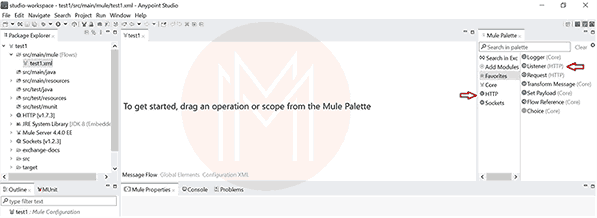
- After dragging it, you will get the workspace as shown below.
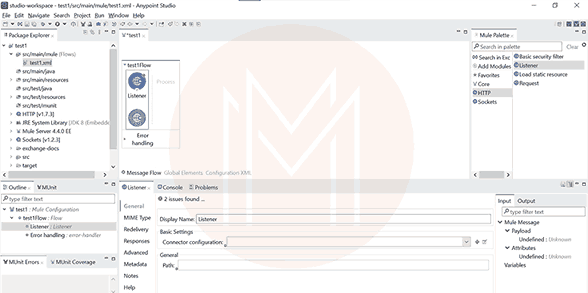
- Now go to ‘global elements’ located at the lower part of the test1 console, and then click the ‘create’ button.
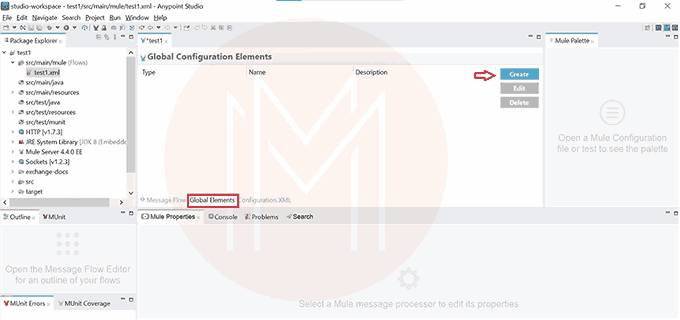
- A new pop-up will appear, as shown below. Navigate to ‘connector configuration’ and click on the left-side arrow.
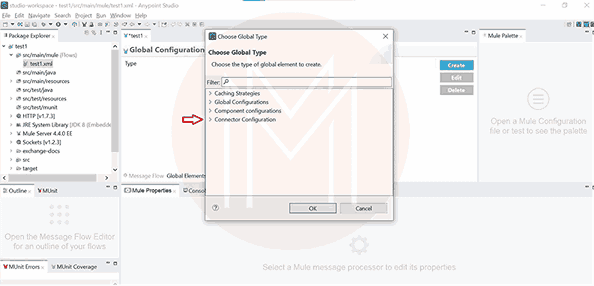
- It will open a list of items. Select the ‘HTTP listener config’ and click OK.
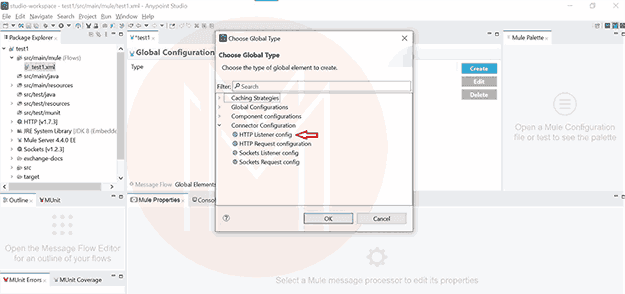
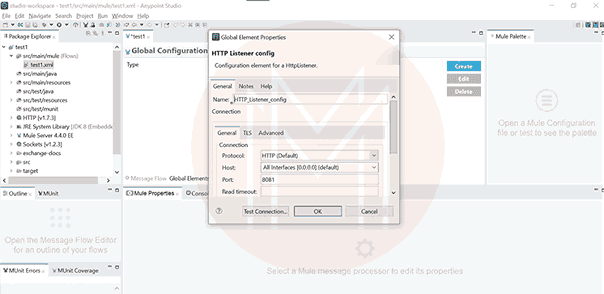
- A new pop-up will emerge, as shown below. Then click the OK button.
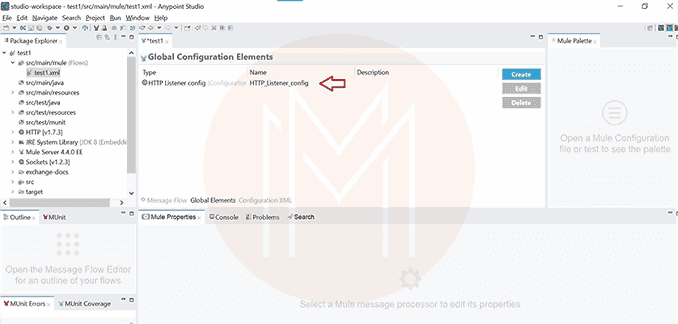
- The ‘HTTP listener config’ will be added to the global configuration elements, as shown below.
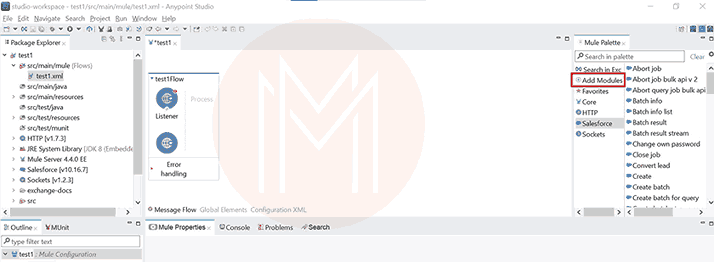
- Again, go to the ‘MuleSoft palette’ and click ‘Add Modules’. Now, drag and drop ‘Salesforce’ into the items of the Mule Palette.
- Go to ‘Mule Palette’ and click the 'search in Exchange’ item.
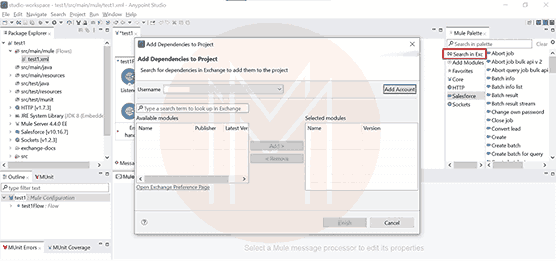
- A new pop-up will emerge as shown in the figure, where you click ’Add Account’ and then click configure at the top of the pop-up. Then choose the ‘AnyPoint Platform as authentication’ method.
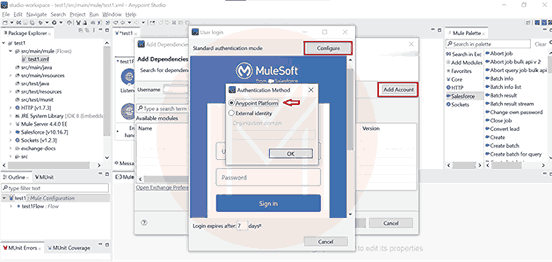
- Enter your MuleSoft credentials in the required fields and click the OK button.
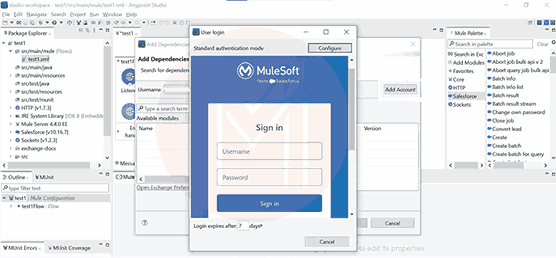
- Also, click the configure button on top of the user login. Then, select the AnyPoint platform and click OK. The MuleSoft configuration is now complete. Next, let’s proceed to the integration phase.
- Go to the Mulesoft palette, click ‘HTTP,' and drag the listener into the workspace.
- Integrating with Salesforce
In this section, we will go over the steps to integrate Salesforce with MuleSoft.
-
- Then type ‘Salesforce’ in the field as shown in the image below. You will see a list of Salesforce products, from which you select the Salesforce connector.
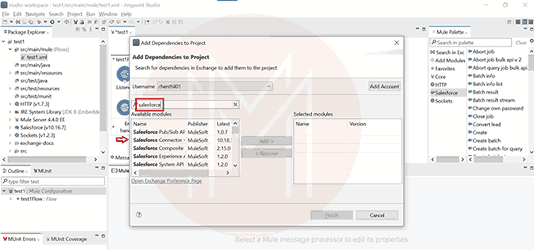
- Add the element and click the finish button to complete.
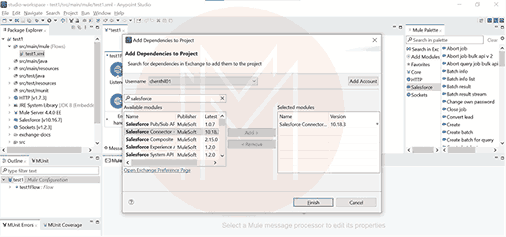
- After that, you can ensure whether the test connection is successful.
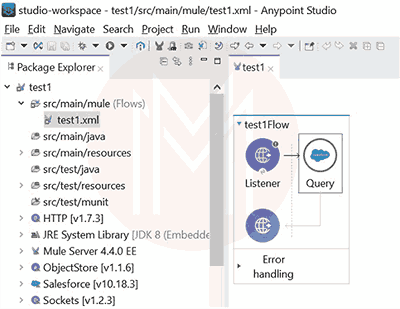
- Then, drag the ‘query’ from the Salesforce modules in the Mule palette. Also, add ‘Salesforce_config’ in the basic settings, as shown in the image below.
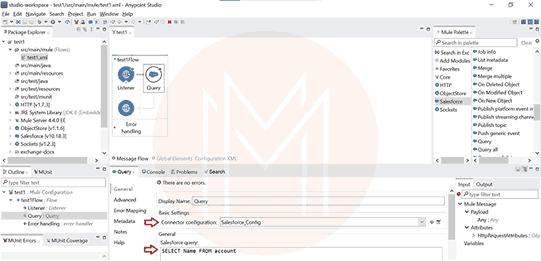
- You can now type a Salesforce query, as shown in the image below.
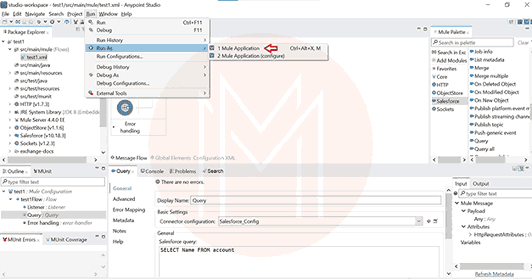
- Then select the query and run it as an ‘Mule Application’.
- Finally, you can find the application status as deployed in the console.
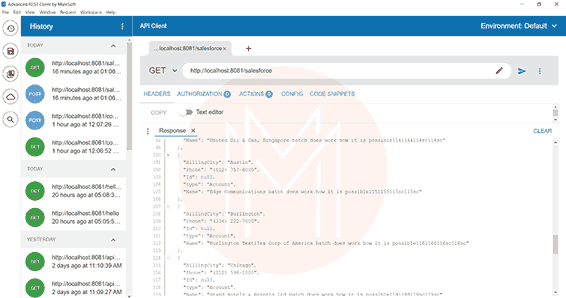
- You have now successfully integrated MuleSoft with Salesforce.
- Then type ‘Salesforce’ in the field as shown in the image below. You will see a list of Salesforce products, from which you select the Salesforce connector.
- Best practices in MuleSoft integration with Salesforce
Let’s take a look at the best practices.
-
- You must clearly segregate responsibilities between MuleSoft and Salesforce. For example, MuleSoft gathers, transforms, and inserts data into Salesforce, whereas Salesforce automates data processing.
- You must create mappings to expose data flow between MuleSoft and Salesforce. It will help to identify the potential issues in data transfer.
- You can map documents between external systems and Salesforce. This approach helps define MuleSoft's scope, data transformations, and related details.
- Benefits of MuleSoft integration with Salesforce
Let’s go over the benefits in the following.
-
- This integration unifies data across a single platform using pre-built connectors.
- This integration speeds up upgrades, significantly reducing time and costs.
- It allows companies to move from cloud to multi-cloud platforms effortlessly. There is no need to rebuild applications.
- It enables increased connectivity of data sources and SaaS applications.
- It improves security through robust access control and threat protection.
In Summary, the MuleSoft integration with Salesforce creates a unified data platform by synchronizing data.
Tableau Integration with Salesforce
In this quick guide, we help you integrate Tableau with Salesforce through a hassle-free, step-by-step process.
Let’s go ahead!
- Tableau – An Overview
Tableau is a business intelligence tool you can use to analyze business data and create visualizations. It displays analysed data in charts, maps, and graphs. You can retrieve insights from data visualisations and make informed decisions.
- Why integrate Tableau with Salesforce?
Integrating Tableau with Salesforce is crucial for data retrieval and analysis. Here are the reasons:
By integrating Tableau with Salesforce, you can:
-
- Get 360-degree visibility across customer data
- Analyse your data securely
- Eliminate the time and effort required to extract data manually
- View the important KPIs
- Achieve improved data analysis instantly
- Customize data visuals
You can make powerful data-driven decisions by integrating Tableau with Salesforce. Next, we will review the basic requirements for performing this integration.
- Tableau integration with Salesforce
You will go through a simple procedure to integrate Tableau with Salesforce. The procedure has three stages, as shown below:
-
- Installation of Tableau Desktop on your machine
- Connecting Salesforce from your Tableau desktop
- Creating the dashboard on your Tableau desktop
Frequently Asked Questions
1. Name the different types of MuleSoft APIs.
Ans: The following are the different types of MuleSoft APIs.
- Process API
- System API
- Experience API
2. Can I leverage MuleSoft for integration?
Ans: Yes! You can use MuleSoft for seamless integration. It simplifies data exchange and communication.
3. Mention the different types of MuleSoft deployments.
Ans: Below are the different types of MuleSoft deployments.
- CloudHub
- On-premises Mule instances
- Anypoint Runtime Fabric
4. What data types can you typically integrate into Salesforce?
Ans: Attachments, custom fields, Descriptions, and comments are data types integrated into Salesforce.
5. Name the key components of Tableau software.
Ans: Below are the key components of Tableau software.
- Gateway
- Repository
- VizQL Server
- Application Server
- Data Engine
6. What is the significance of the Salesforce and Tableau integration?
Ans: This integration eliminates the need for IT executives to be involved in data extraction and analysis. Anyone familiar with the basic operations of Salesforce and Tableau can work efficiently with this integration to analyse data.
Conclusion
In summary, we hope the step-by-step procedure helped you perform a seamless MuleSoft integration with Salesforce. Now, you have gained the skills to analyse data using Tableau and make informed decisions.
If you are keen on learning more about Salesforce integrations, you can check out MindMajix courses on Salesforce, MuleSoft, and Tableau. It will help skyrocket your career growth.
 On-Job Support Service
Online Work Support for your on-job roles.

Our work-support plans provide precise options as per your project tasks. Whether you are a newbie or an experienced professional seeking assistance in completing project tasks, we are here with the following plans to meet your custom needs:
- Pay Per Hour
- Pay Per Week
- Monthly
| Name | Dates | |
|---|---|---|
| Salesforce Training | Sep 26 to Oct 11 | View Details |
| Salesforce Training | Sep 29 to Oct 14 | View Details |
| Salesforce Training | Oct 03 to Oct 18 | View Details |
| Salesforce Training | Oct 06 to Oct 21 | View Details |